
Google Play Beta Free Fire Download, Features, PC Gameplay
Description
Free Fire is one of the most popular mobile battle royale games, and many players enjoy it because matches are quick, controls are simple, and the game can run on a wide range of devices. For players who prefer a larger screen, playing a mobile game on a Windows computer can be a useful alternative. Google Play Games on PC was created to bring selected Android games to Windows computers, allowing players to use a keyboard and mouse while keeping their game progress connected to their Google account.
The phrase Google Play Beta Free Fire is commonly used by players searching for information about playing Free Fire or Free Fire MAX through Google Play Games on PC. Google officially announced Free Fire MAX as one of the games coming to Google Play Games on PC in 2023. Availability can change by region and game version, so players should always check the current Google Play Games catalog rather than relying on an old APK or unofficial installer.
This guide explains how Google Play Games on PC works, what players should know about Free Fire, system requirements, installation, controls, performance, account safety, and common problems.
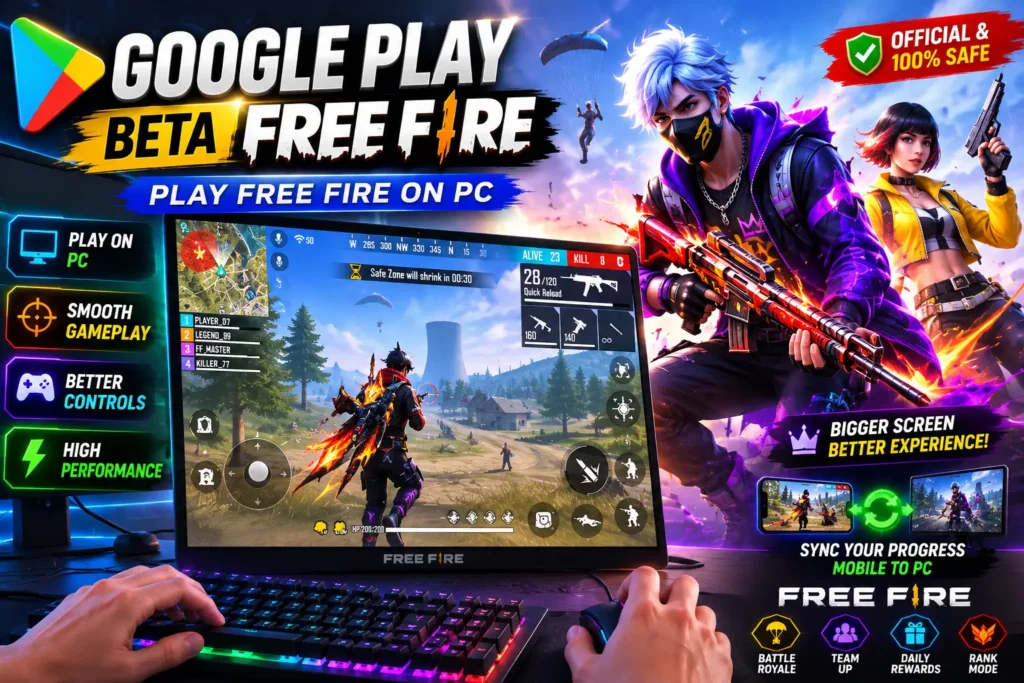
What Is Google Play Games on PC?
Google Play Games on PC is Google’s platform for running selected mobile games on Windows computers. Instead of using a third party Android emulator, players can access supported games through Google’s own PC gaming application.
The platform is designed to provide a computer based gaming experience with features such as keyboard and mouse support. Google also says that players can synchronize progress between supported mobile and PC gameplay and earn Google Play Points when eligible.
The catalog is not the same as the complete Google Play mobile library. Only games that are supported for Google Play Games on PC appear in the relevant catalog.
Free Fire and Google Play Games Beta
Free Fire has had a connection with Google Play Games on PC through its MAX version. Google announced in July 2023 that Free Fire MAX was being added to Google Play Games on PC, initially in Malaysia and Taiwan, with additional regions planned.
This is important because many older articles describe the service as “Google Play Games Beta” while Google now commonly refers to it as Google Play Games on PC.
Availability can also change after game updates. Some players have reported changes to Free Fire MAX controls and PC functionality following updates, but community posts are not official confirmation of future support.
Therefore, if Free Fire does not appear in your Google Play Games catalog, you should not assume that a random website offering a special “Google Play Beta Free Fire APK” is legitimate.
Is Google Play Games on PC Available in Pakistan?
Yes. Google’s support information lists Pakistan among the countries where Google Play Games on PC is available. However, availability of the platform does not mean that every game is available in every country. Individual games can have separate regional restrictions.
Your Google account also needs to meet the eligibility requirements for the service. Google states that users need a personal Google Account and a supported Play country or region. Some regions may also require age verification.
For Pakistani players, the safest approach is to install Google Play Games on PC through Google’s official website and then search the built-in game catalog.
Main Benefits of Playing Free Fire on PC
Larger Screen
A computer monitor provides a larger viewing area than a smartphone. This can make it easier to observe the battlefield, read interface elements, and follow movement during a match.
Keyboard and Mouse
PC controls can feel different from touchscreen controls. A keyboard provides dedicated movement keys, while a mouse can offer more precise camera movement when a supported game provides appropriate controls.
Google’s Windows compatibility system checks whether games support mouse and keyboard input.
Better Multitasking
A PC can make it easier to manage other activities around a gaming session. Players can also benefit from a stable wired internet connection when their setup supports it.
Larger Display Options
Players can use a laptop display, desktop monitor, or compatible larger screen. This gives more flexibility than playing exclusively on a phone.
Progress Synchronization
Google states that Google Play Games on PC can synchronize supported game progress between computer and mobile devices. This means players do not necessarily need to start from the beginning when moving between supported devices.
Google Play Games on PC System Requirements
Before installing the application, it is important to check whether your computer meets Google’s requirements.
Google currently lists Windows 10 version 2004 or later, an SSD with at least 10 GB of available space, 8 GB of RAM, a processor with four physical CPU cores, and Intel UHD Graphics 630 or a comparable GPU as minimum requirements. Hardware virtualization must also be enabled, and a Windows administrator account is required.
These are platform requirements rather than a guarantee that every game will run at the same performance level. Individual games can have different demands.
A stronger computer can provide a more comfortable experience, particularly when playing graphically demanding titles.
How to Install Google Play Games on PC?
Installing Google Play Games on PC is straightforward when your computer meets the requirements.
First, visit the official Google Play Games page. Google provides a download option for Windows users through its official website. After downloading the installer, open the file and follow the instructions shown on screen.
During setup, Windows may ask you to enable certain virtualization features. Google notes that Windows Hypervisor Platform may need to be enabled, while CPU virtualization may need to be activated through BIOS settings for some games.
After installation, sign in with your personal Google Account. Open the game catalog and search for the supported Free Fire title available in your region.
If the game is listed, open its page and follow the installation instructions provided by Google Play Games.
How to Start Playing?
Once the supported game has been installed, open it through Google Play Games on PC.
The first launch may take longer than normal because the game needs to prepare its files. Make sure your internet connection is stable during installation and updates.
After entering the game, take some time to learn the PC controls. Players who are used to touch controls may need a few matches before keyboard and mouse movement feels natural.
Do not immediately change every setting. Start with the default configuration and make small adjustments based on your comfort.
Free Fire Gameplay on a Bigger Screen
Free Fire is built around fast survival gameplay. Players enter a battlefield, collect equipment, move through the environment, and compete against opponents.
The official Free Fire website describes the game as a free to play survival shooter with modes including Battle Royale and Clash Squad.
The current Google Play listing also highlights multiplayer gameplay, tactical shooting, competitive matches, smooth graphics, and different in-game events. The listing shows the game as a teen-rated title with in-app purchases.
Playing on a PC does not change the basic objective of the game. Instead, the main difference is the control method and screen size.
Current Free Fire Features
The current Free Fire release continues to receive major updates and seasonal content. The Google Play listing for the 9th Anniversary version includes a new 3D party lobby, themed Battle Royale content, anniversary tasks, milestone rewards, and additional Clash Squad progression features.
Garena’s official website also lists recent updates, including the OB54 patch and the game’s 9th Anniversary celebration.
Because Free Fire changes regularly, features mentioned in older articles may no longer be available. Players should check the current game listing and official announcements for the latest information.
Why Free Fire May Not Appear?
One common problem is searching for Free Fire in Google Play Games on PC and finding nothing.
There can be several reasons. The game may not currently be supported in your region, the particular version may have changed, or the game may have been temporarily removed or modified for PC distribution.
Google’s support documentation explains that only a curated selection of games is available through Google Play Games on PC. It also notes that developers are responsible for releasing their games on the platform.
This means that searching for an unofficial “Free Fire Beta APK” is not a reliable solution.
Common Performance Problems
Some players may experience stuttering, slow loading, frame drops, or input problems.
Start by checking your computer against the official minimum requirements. Google recommends an SSD, 8 GB of RAM, compatible graphics hardware, and hardware virtualization.
Close unnecessary applications before launching the game. Keeping Windows and graphics drivers updated can also help.
If the game has its own graphics settings, reduce demanding options when performance is poor. Lower settings can sometimes provide a more stable experience on weaker hardware.
Controls and Keyboard Settings
One of the biggest reasons players choose PC gaming is the ability to use a keyboard and mouse.
However, controls can change after game updates. Community reports from June 2026 describe changes to Free Fire MAX controls following an update, including complaints about previous PC control functionality. These reports show why players should avoid assuming that an old control guide will still match the current version.
Always check the controls shown by the current version installed through Google Play Games on PC.
Is Google Play Beta Free Fire Safe?
Using official Google Play Games on PC and an officially distributed game is generally preferable to downloading modified installers from unknown websites.
Players should avoid files that promise unlimited diamonds, free accounts, unlocked skins, anti-ban features, or special PC versions. Such files may be unrelated to the official game and could expose users to security or account risks.
Garena provides Free Fire through Google Play for Android, and its official FAQ identifies Google Play as an Android download location.
For the safest experience, use official distribution channels and never provide your Google or Free Fire login details to an unofficial download website.
Google Play Beta Free Fire vs Android Emulators
Google Play Games on PC and traditional Android emulators are different approaches.
Google’s platform is designed specifically to bring supported mobile games to Windows. Traditional emulators can provide broader Android compatibility, but their performance and control systems vary between products.
For players whose preferred game is officially supported by Google Play Games on PC, using the official platform can be a convenient option.
If a game is not listed, installing random APK files should not be treated as an official workaround.
Tips for a Better Experience
- Keep your game and Google Play Games application updated.
- Use a stable internet connection.
- Make sure your PC has enough free SSD storage.
- Enable required virtualization settings.
- Close unnecessary background programs.
- Start with default control settings.
- Keep your Google account secure.
- Download games only from trusted official sources.
- Back up important data when appropriate.
These simple steps can reduce many common installation and performance problems.
Final Thoughts
Google Play Beta Free Fire is a phrase many players use when searching for ways to play Free Fire or Free Fire MAX through Google’s PC gaming platform. The service has supported Free Fire MAX in its PC catalog, although availability and features can change over time and by region. Google officially introduced Free Fire MAX to Google Play Games on PC in 2023, while current Google documentation explains the platform’s requirements, compatibility system, and installation process.
For Pakistani users, Google currently lists Pakistan as a supported country for Google Play Games on PC. The best approach is to install the platform through Google’s official source and check whether the desired Free Fire version appears in the current catalog.
Avoid unofficial “beta APK” files, modified game packages, and websites promising unlimited in-game benefits. A genuine installation provides a safer starting point and makes it easier to receive legitimate updates.
Most importantly, remember that Google Play Games on PC is a changing platform. Game availability, controls, compatibility, and features can be updated by Google or the game developer. Checking the latest official information before installing or troubleshooting Free Fire is therefore the best way to get an accurate experience.
FAQs
What is Google Play Beta Free Fire?
Google Play Beta Free Fire refers to playing a supported Free Fire version through Google Play Games on PC, allowing players to enjoy the game on Windows with PC controls.
Can I play Free Fire on PC with Google Play Games?
If the Free Fire version is currently supported in your region, you can install it through Google Play Games on PC and play it using a compatible Windows computer.
Is Google Play Beta Free Fire available in Pakistan?
Google Play Games on PC is available in Pakistan, but individual game availability can vary by region and may change after updates.
What are the requirements for Google Play Games on PC?
Google lists Windows 10 version 2004 or later, 8 GB RAM, an SSD with available storage, compatible graphics, and hardware virtualization among its requirements.
Is Google Play Beta Free Fire safe?
The safest option is to use Google Play Games and official Free Fire sources. Avoid unofficial APKs that promise unlimited diamonds, unlocked features, or special anti-ban functions.